

.com.np domain for Free & Free hosting in Nepal
Yes, you can get a free domain name and hosting. Get your custom domain name free of cost lifetime.
In this article, I will discuss you how to get free domain and hosting them to earn online.
Table of Contents:
How to get free domain
- Step-1 Checking availability of Domain Name in Register.com.np
- Step-2 Creating new account
- Step-3 Filling the domain Request Form
- Step-4 Uploading Required Documents and Submitting
Free Hosting Free Domain
- Step-1 Creating account in Infinity.com
- Step-2 Adding websites in account section
- Step-3 Selecting the Hosting Plan
- Step-4 Entering the Domain Name
- Step-5 Entering the Additional Information of Website
- Step-6 Securing Website by SSL certificate
- Step-7 Publishing your website with WordPress, No coding
- Step-8 Live website and Preview
- FAQ
- TROUBLESHOOTING
How to get free domain?
There are many ways to get free domains. We can find various websites to get free domain websites. Here, I will guide you through one website that offers 100% domain and host it without any coding software free of cost. It is easy and spam free. No knowledge of coding is required.
Register.com.np Mercantile Communication Pvt. Ltd helps to get free domain for lifetime in Nepal.
It is easy and convenient to start.

The following is the steps involved in creating free domain lifetime.
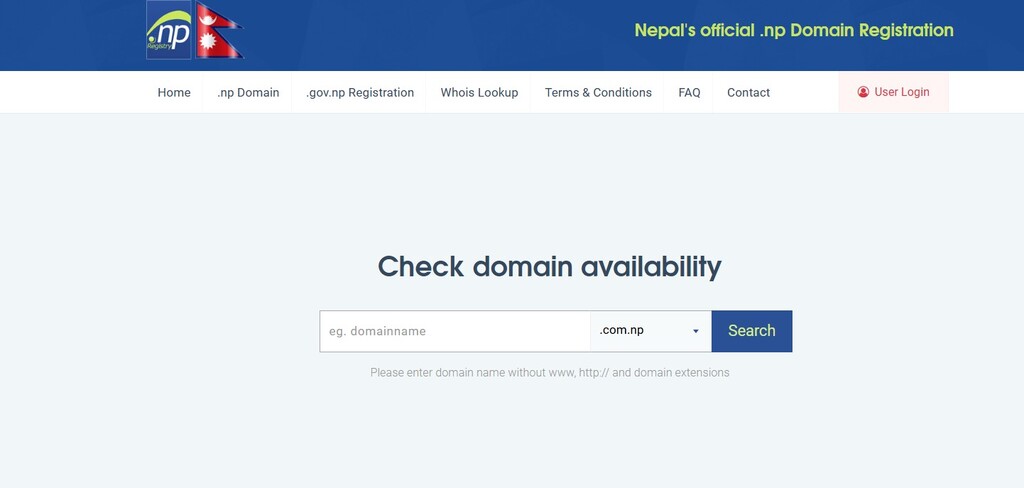
Check domain availability
Step-1: Registration and domain availability check
Go to Register.com.np . Interface is as following. Check domain availability of domain name by entering the box. You must follow the domain name guidelines. Your domain name should be related to your official registered name or official organization name. If you create different from your name then, it’s for sure will get rejected. Example: My name is Ram Sharma. Then I will use Ramsharma.com.np.
The following interface appears if domain name is already taken. Keep in mind of domain name guidelines, I can select sharmaram.com.np.
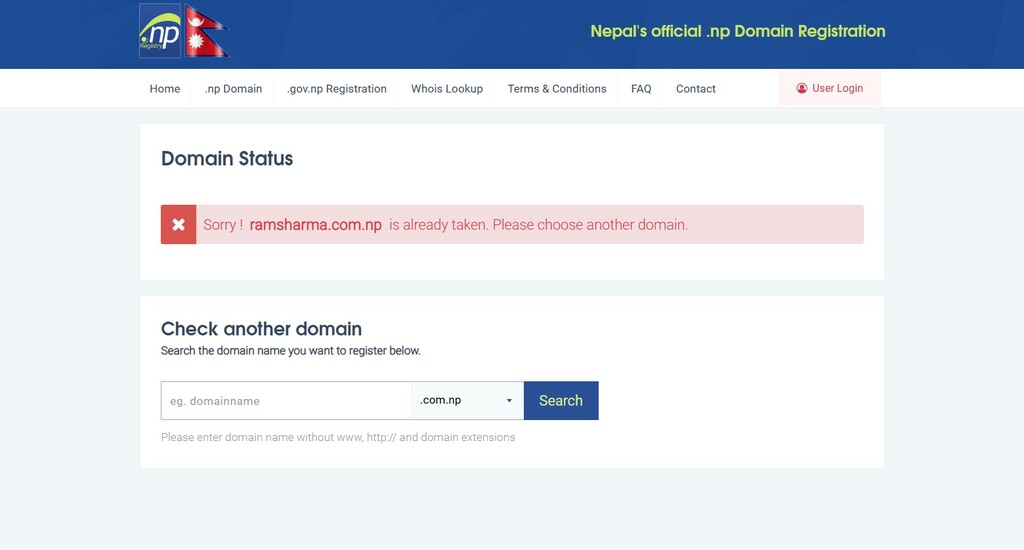
Taken Domain availability Status
Congratulations! Its available as shown below. Now follow the next steps.
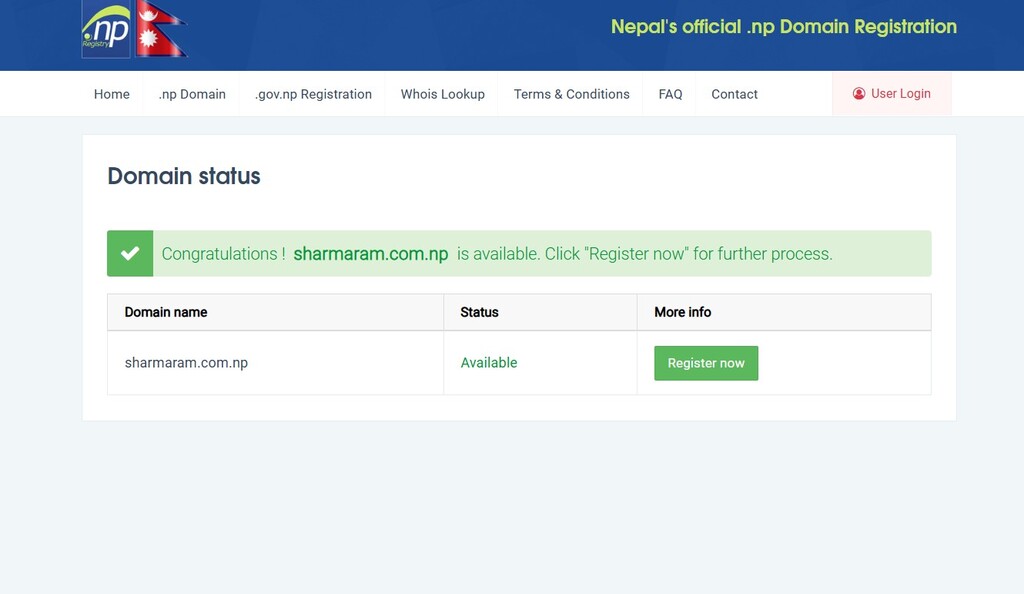
New Domain Status: Available
Step 2: Registration and Loging in
Click on register button and we will get login page. If you are already registered, then you can login to proceed. If not, then click on create account. The screen as follows opens. Now, fill the information related to your official ID/Documents.
Note: Email id your entered will be username to login in later in login page. Note down the password which should contain at least 7 including at least a letter, a number and not a character. Character like #, @, % this can’t be used.
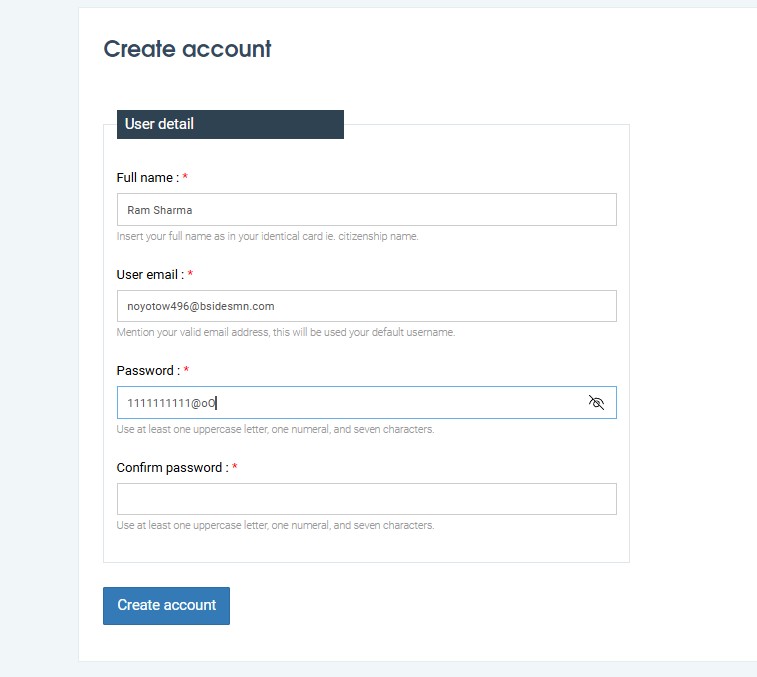
Create New Account
Step: 3 Filling the domain Request Form
After sign in/ registering and verify email. Fill in the domain request form. Fill this page carefully so that your information matches with your official ID. Later, you will get error message, if information doesn’t match with your ID/ company registration certificate.
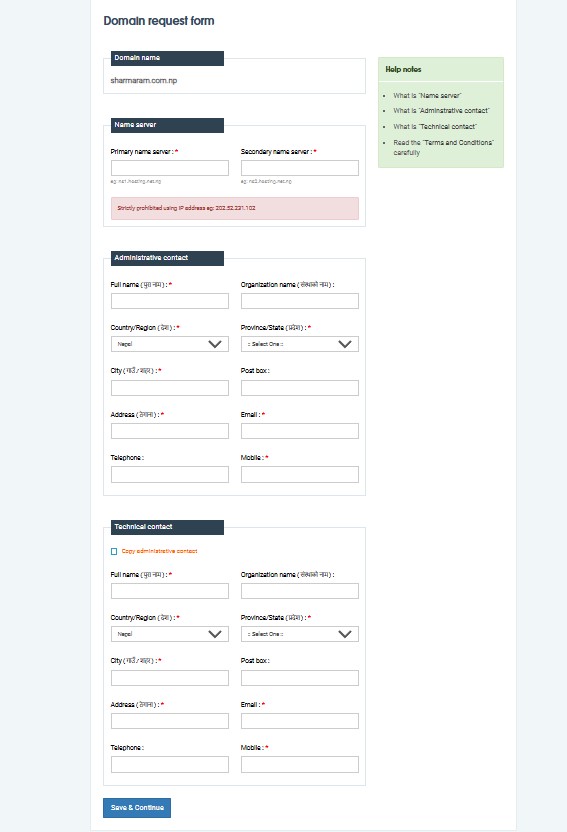
Domain Request Form
Note: For personal, consider your full name, address, country, province and city as document (don’t enter organization, leave it blank). Email id and phone no. are for communication and verification purposes only. It will be used to communicate and for account login purposes which you will receive later in that email id.
Documents required: Colour scan of citizenship and a cover letter signed by you.
For Business/ Organization, consider your full name, address, country, province and city as registered document and enter organization name as it is in registration certificate,
Documents Required: Company registration certificate and a cover letter written in company letter head by registered owner with stamp and signature.
As later for hosting, we will use infinityfree.com so input as follows:
Primary name Server: ns1.infinityfree.com
Secondary name server: ns2.infinityfree.com
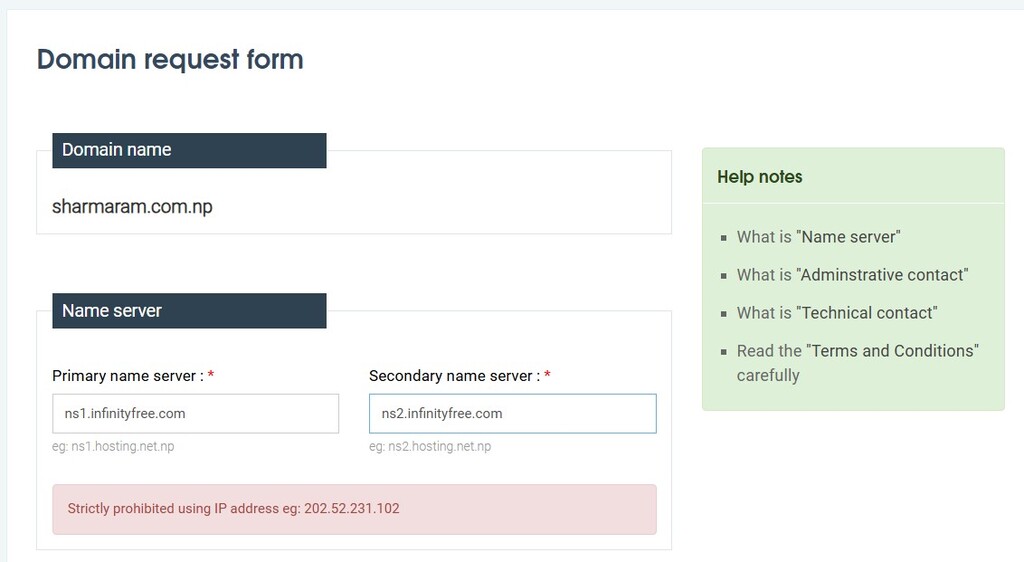
Name server form
Step: 4 Uploading supporting documents and submitting
Now upload the documents in image format and submit with cover letter.
Finally click on request domain. Now, it ready to go.
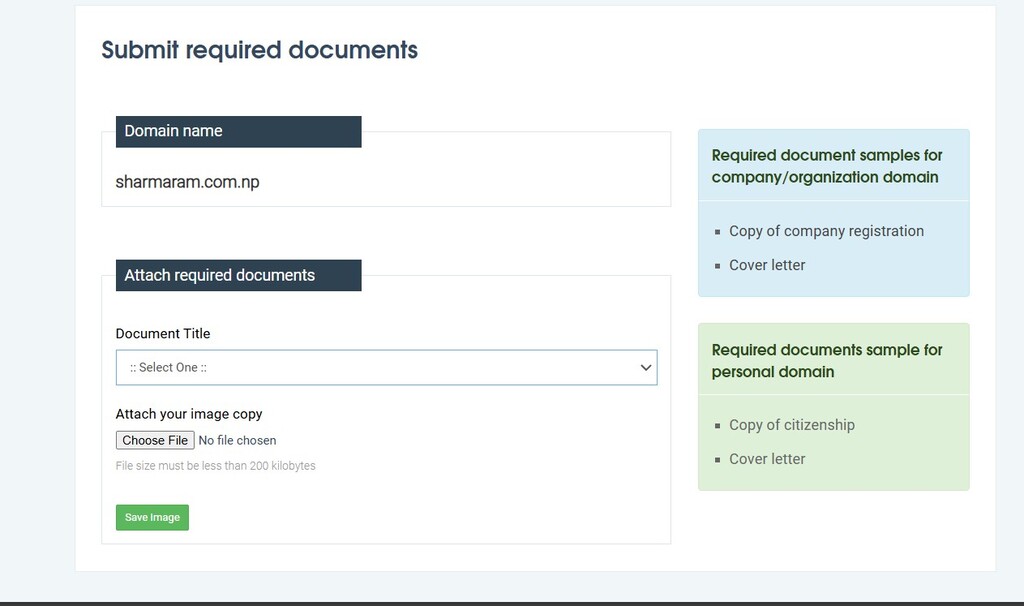
Document uploading portal
Sample cover letter is as follows :
Wait for some days. Keep logging and check the notification as follows:

Free Hosting Free Domain
Hosting Domain using WordPress, Easy to setup
After your website is active, now we need a hosting to make our website live and working.

Step 1: Creating Account in infinityfree
Go to infinityfree.com create your account, input your name, email id, phone number and get ready with your account.
Step 2: Create Account in Account Section
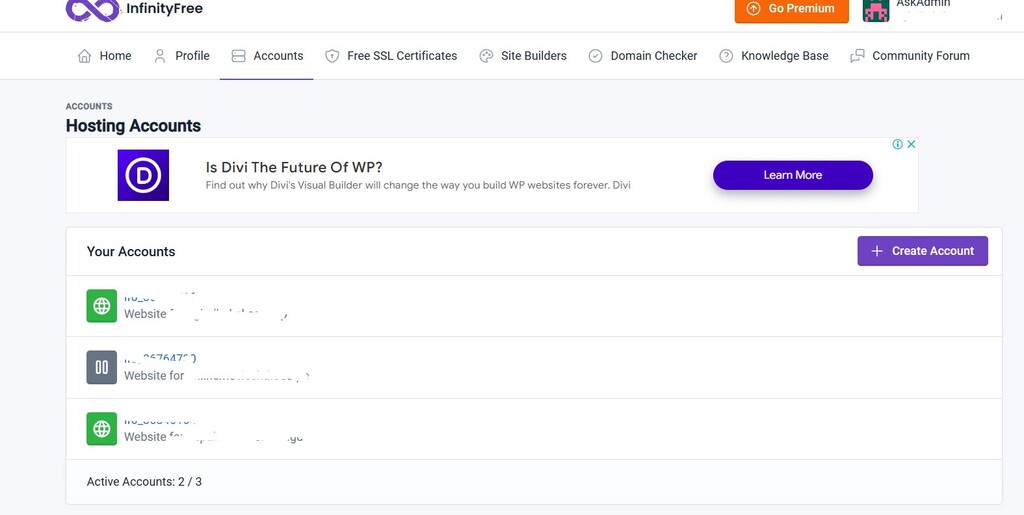
To add website, click on create account in above images and click next.
Step 3: Selecting Hosting Plan
In this step, we will choose the free hosting plan as shown in the images.
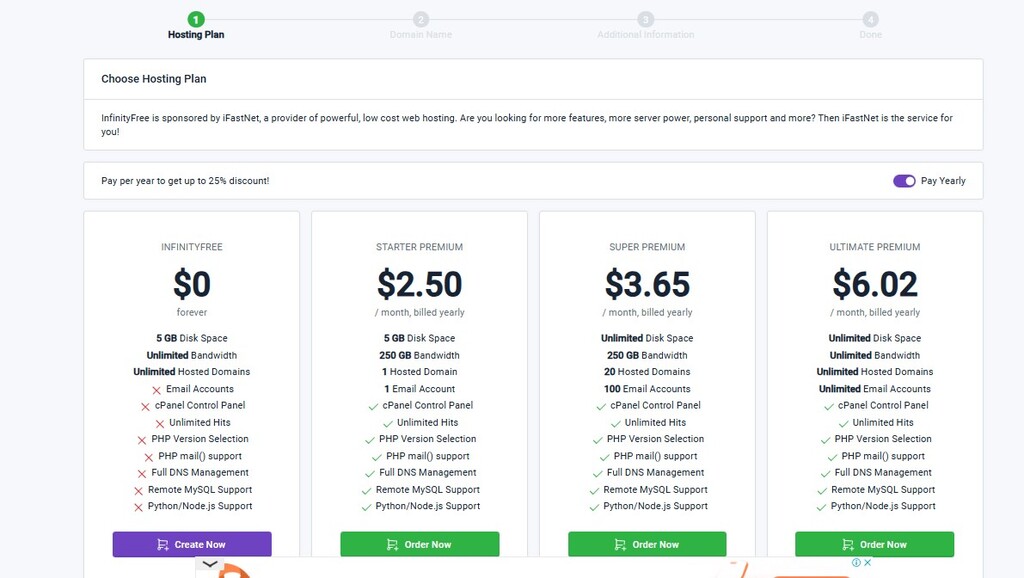
Hosting Plan
Select Create Now infinityfree $0 forever.
Step 4: Entering Domain Name
Now for the given below image, enter the domain name in custom domain section. You should enter without https:// as shown in the image.
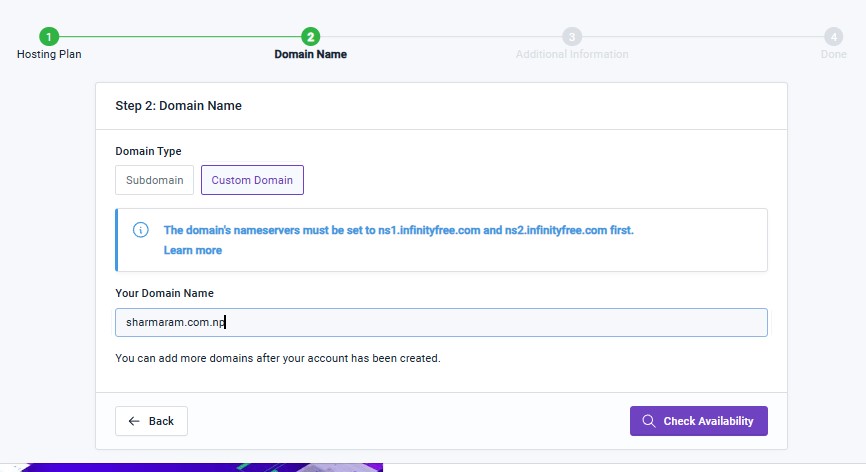
Custom Domain Name Page
Step 5: Entering Additional Information of Website
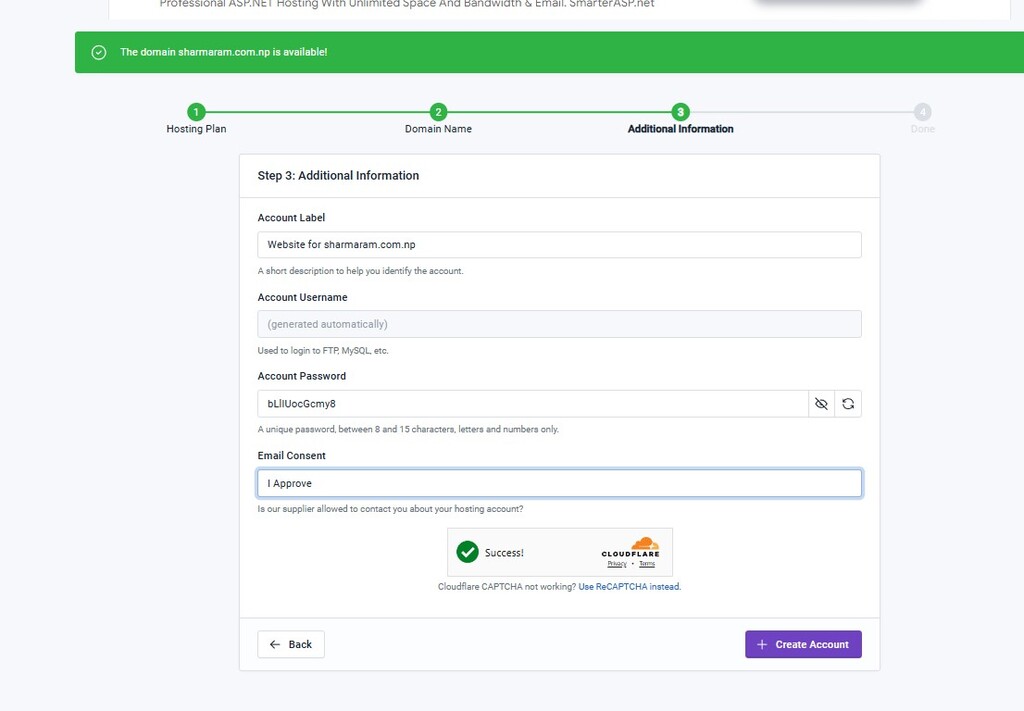
Additional Information of Page
In this section enter the information of website. You need to enter account label, password and email consent. Make it has shown in images. Entering the account label will not publish your name in live website. It’s just to create account.
Step 6: Securing Website by SSL certificate
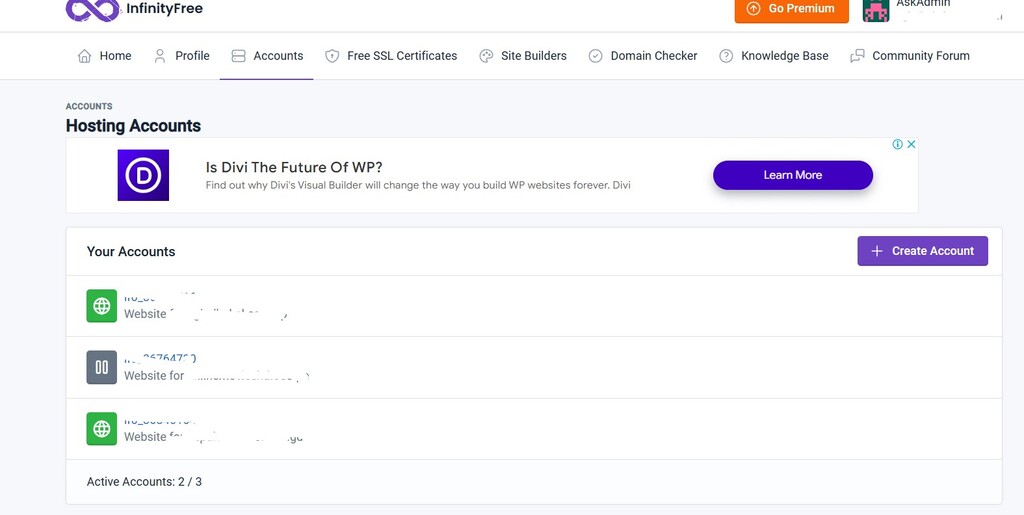
To make website secure
In the above image, click on free ssl certificates. Then click on New SSL certificate, then enter your domain (sharmaram.com.np) and click create order.
In next page we will see setup c-name at first and at bottom request certificate. Choose recommended
First click on setup CNAME and wait for some hrs to work request certificate button. If c name is not working, then verify the server’s name as mentioned above.
Request certificate takes time to work. Following certificate is displayed after verification of SSL certificate.
Copy the private key and certificate and go to account, control panel and find SSL/TLC in security menu.
Click on it and in next menu click on configure, now copy private key from below image location and paste and click upload. Similarly, so do certificate paste and upload. Finally, your website is secured.

SSL Certificate with Private Key and Certificate
STEP 7 : Publishing your website with WordPress
Now making your website with some contents.
- Go to control panel. (Find by login in, click on account, click on website)
- In control panel find Softaculous Apps Installer and open it
- After opening click on WordPress
- Install WordPress
- Type username your password and email id and click install.
- After successful you will get a success message.and your URL to login. Usually, your login url follows as sharmaram.com.np/wp-admin
Step-8 Live Website and Preview
Go to your website url and view the live website. For setting up website with wordpress click here to watch setting wordpress
FAQ
Problem 01 : Your Domain is not yet pointing to our name servers ns1.infinityfree.com and ns2.infinityfree.com. Please change your nameservers at your domain name provider and wait a few hours for the changes to take effect.
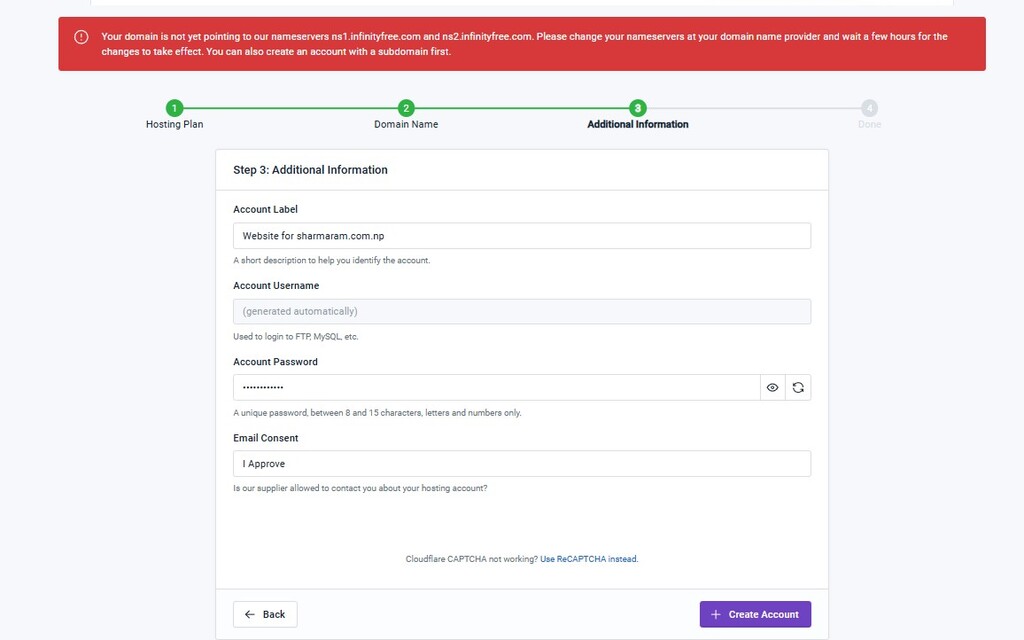
Error Shown as either domain is not active, or server are not entered correctly
Solution 01 : Go to the register.com.np website and login to your account and in dashboard click on active domain and change the server name as click here to go to post
Problem 02 : Website is not secured and shows http://
Solution 01 : To secure your website follow this post. Also in wordpress, go to setting and in general tab, You will be wordpress url and Site url. Make changes as following by adding https:// instead of http://
WordPress Addresses (URL) : https://sharmaram.com.np
Site Addresses (URL) : https://sharmaram.com.np
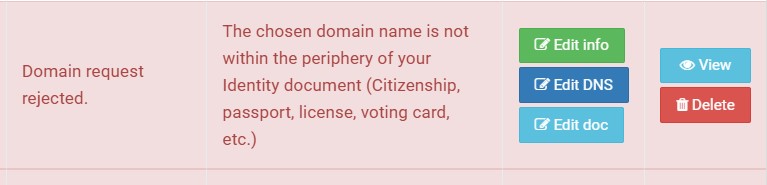
Problem 03 : Why Domain Request is rejected, Why?
Solution 03 (A): The reason of domain rejection is the chosen domain name is not within the periphery of your Identity document (Citizenship, passport, license, voting card, etc.). Make changes so that your domain name is similar to your name with no new words added to it. This is the case when your domain name does not match with guidelines and verify the information input in edit info and re upload again/ check document from edit doc.
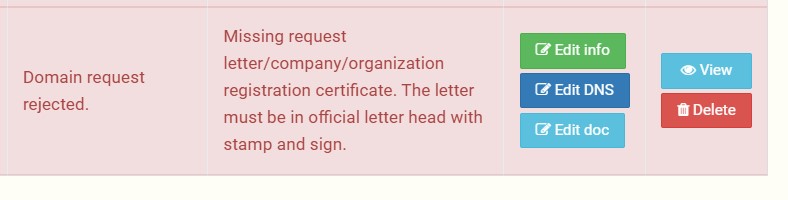
Solution 03 (B) : This is the case when cover letter is not written in official letter head and has no stamps and authorized signature of owner.
If your have anyqueries , feel free to contact us at contact@postofday.com